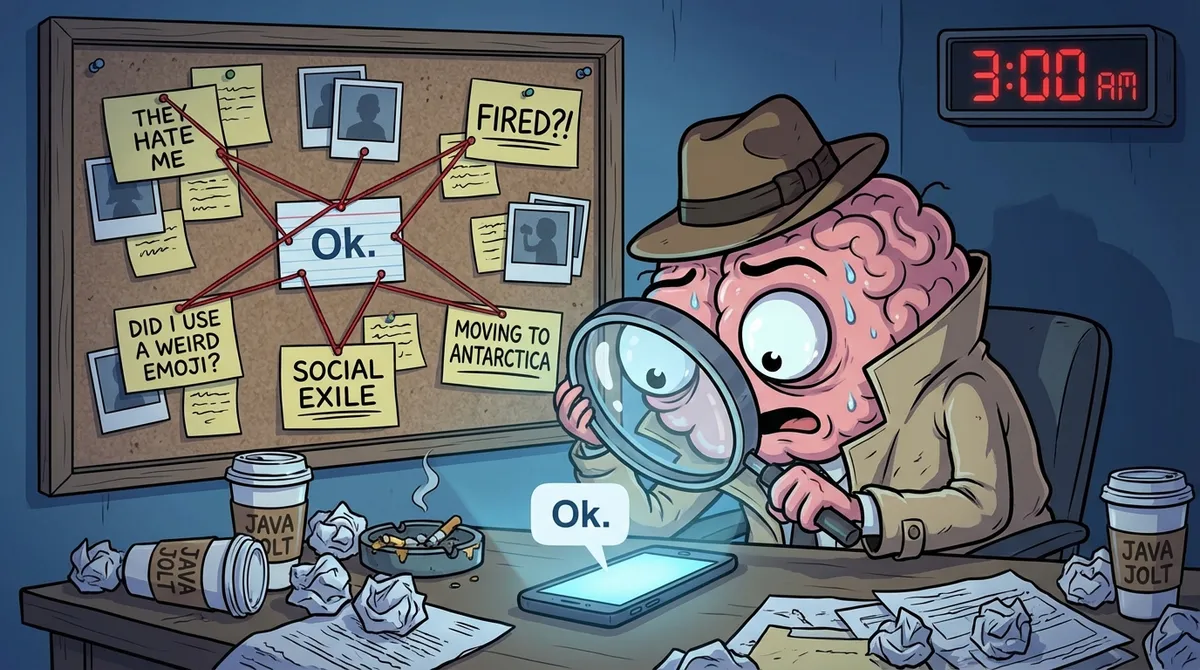
Why is Chrome So Slow? (And How OneTab Cures Your Horrendous Digital Hoarding)

⚡ The Sluggish Chrome Emergency Checklist (TL;DR)
-
Install OneTab: Click it immediately to collapse all your tabs into a single list and free up your RAM.
-
Turn on Memory Saver: Go to
chrome://settings/performanceand flip the switch to put background tabs to sleep. -
Purge Heavy Extensions: Hit
Shift + Escto find and disable the plugins secretly draining your system.
The Scientific Measurement of Tabs
Here we observe the majestic Chrome Browser, sluggish and bloated after gorging on websites. It requires constant feeding, devouring your RAM until nothing remains but a spinning beach ball of death.
If we look closely at the average user, we can measure their mental state purely by their tab count:
- 1 Tab: Clear desk.
- 12 Tabs: Magazines you’ll read eventually.
- 38 Tabs: Boxes in the hallway that have been there since the move.
- 74 Tabs: A second fridge in the garage that nobody opens.
- 118+ Tabs: You’re starring on the hoarding TV show.
You open tabs because you genuinely want to become a better person. You have productivity tips, fitness guides, and How to Learn Japanese Fast all sitting there in the top bar. But you never read them. Your browser window has become a museum of the person you planned to be.

The Tab Justification Process
Every single tab has a story, and you refuse to close it because:
- “I might need it later.”
- “It’s part of my research.”
- “I haven’t finished the article.”
Meanwhile, the article itself is titled Why You Should Close Your Tabs.
You and I both know that guilty feeling when you know you already have a tab open somewhere but are too lazy to find it, so you just open a new one? Or perhaps the panic associated with frantically clicking to find the one tab playing audio, and accidentally closing the wrong window?
Installing a tool like OneTab feels like finally hiring a personal assistant. You will feel like a CEO, and you will look like someone who finally admitted they have a problem. It quietly collects all your aspirations into a single list, acting like a therapist saying, “Let’s talk about why you opened 19 articles about morning routines.”
What Actually Works
Phase 1: Immediate Resource Reclamation
Execute a Mass Tab Collapse
Chromium-based browsers allocate separate memory processes for every open tab. Collapsing them into a static HTML list terminates these active processes, instantly freeing up to 95% of your allocated RAM. A recent test by Shift highlights that graphics-heavy sites and poorly optimized scripts in background tabs can quickly drain CPU and RAM, making a tool like OneTab an instant relief valve.
Install the OneTab extension. When your computer starts sounding like a jet engine, click the icon to convert all active tabs into a single, grouped list page. Export this list as a text file regularly to prevent losing everything if your computer crashes. This works beautifully for people who keep dozens of tabs open strictly as visual reminders. Bookmarking is just a graveyard for your aspirations, but OneTab is an organised, memory-efficient mass grave.
Automate Background Tab Discarding
Browser memory savers automatically unload the RAM of tabs you have not interacted with recently, keeping only the visual tab icon active. Google Chrome Developers explain that this keeps the tab state ready for later reloads. When you click the sleeping tab, the page simply wakes up from the cache.
If you use Chrome, go to chrome://settings/performance and toggle on Memory Saver. If you are on Brave, head to Settings > System > Performance and enable Memory Saver. For Vivaldi users, right-click an active tab and select Hibernate Background Tabs to put everything else to sleep. This is perfect if you demand your tabs remain visually present but want the background management handled for you.
Block Trackers with MV3-Compliant or Native Tools
Media autoplay and background tracking scripts severely drain your CPU and RAM. Because Google’s Manifest V3 update restricts how traditional ad blockers operate, relying on outdated extensions can cause conflicts.
If you use Chrome, grab uBlock Origin Lite, built specifically to comply with Manifest V3 constraints while providing efficient filtering. Alternatively, switch to Brave Browser, which features a built-in tracker blocker (Brave Shields) that neutralises heavy scripts without the overhead of running a third-party extension.
Audit and Purge Persistent Extensions
Active extensions inject scripts into every page you load and run persistent background processes. Shift notes that graphics-heavy sites and too many extensions heavily strain your system. A user with 15 active extensions can double their baseline memory footprint before opening a single website.
Press Shift + Esc to open your browser’s built-in Task Manager. Sort by “Memory footprint” to identify what is hogging your resources. Then, head to your extensions dashboard and disable (rather than delete) the heavy ones to test the performance improvements.
Phase 2: Structural and System Fixes
As an Amazon Associate, we earn from qualifying purchases. This means that if you purchase a product through one of our links, we may receive a small commission at no extra cost to you.
Organise with Native Tab Stacking
Grouping related tabs reduces visible clutter and cognitive load. Research indicates that frequent “context switching” between dozens of unrelated tabs acts as a separate mental context, heavily contributing to a “cognitive load crisis” and dropping productivity by up to 40% according to workplace studies. Using a browser with tab management built into its core architecture is more resource-efficient than relying on grouping extensions.
Use Vivaldi. Drag one tab over another to create a “Tab Stack.” You can use the Two-Level Tab Stack feature, which displays your main groups on the top row and the specific tabs within the active group directly beneath it.
Make Time: How to Focus on What Matters Every Day
- Make Time by Jake Knapp & John Zeratsky: The root cause of tab hoarding is behavioural — that constant “I might need this later” anxiety. This book directly addresses designing focus into your day, helping eliminate the psychological driver of keeping 80 tabs open.

Isolate Workflows with Browser Profiles
Profiles operate as fully isolated browser instances with separate memory pools, cookies, and extensions. Tempo.io explains that limiting open tools reduces distractions and context switching. Keeping work and personal environments separate stops tab sprawl from bleeding across contexts.
Click your profile avatar icon, select “Add,” and create distinct environments like “Work” or “Research.” Only launch the profile you are actively using for that session.
Verify Hardware Acceleration is Functioning
Hardware acceleration offloads complex visual rendering tasks from your CPU to your dedicated GPU, which is highly optimised for these jobs.
Go to chrome://settings/system and make sure “Use hardware acceleration when available” is toggled on. Next, type chrome://gpu in your address bar; if you see red “Software only” text, you need to update your graphics drivers.
Debunking Questionable Advice: Do Not Disable DNS Prefetching Many guides suggest disabling Chrome’s “Preload pages” feature. This lacks strong evidence. Prefetching uses minimal RAM but drastically reduces perceived page load times by resolving DNS lookups in advance. Disabling it will make your browsing feel noticeably slower without yielding meaningful performance gains. Keep it set to “Standard preloading.”
Security Warning: The Risk of Third-Party Extensions
Granting an extension permission to “read and change all your data on the websites you visit” is a significant security risk. Extension ownership can change hands silently. For example, the previously popular tab manager The Great Suspender was sold to an unknown party in 2020 and subsequently injected malware into users’ browsers before being removed from the store. Always prioritise native browser features over third-party extensions when possible.
Alternatives That Actually Work
Not everyone works the same way. Here are evidence-based alternatives tailored to specific constraints:
- “Third-party apps feel risky or slow me down.” Rely entirely on native browser tools. Use Brave for its built-in memory saver and tracker blocking, that may eliminate your need for extensions like OneTab or uBlock Origin.
- “My tab problem is organisational, not just performance.” Switch to a browser with native hoarding management like Vivaldi. Beyond tab stacking, it provides a built-in Window Panel and native split-screen viewing. (Note: You may have heard of Arc Browser, it has gone into maintenance mode in May 2025 so it will no longer have new features, but maybe you might prefer it).
- “I need my tabs synced across multiple computers.” Use Toby (
toby.io). It replicates the tab-grouping model of OneTab but includes cloud synchronisation, allowing you to access your collapsed lists on any device. - “I use tabs strictly for research storage.” Adopt a dedicated reference manager like Raindrop.io or Notion Web Clipper. These tools store links in a searchable database without keeping active browser processes running.
- “I refuse to change my tab-hoarding habits.” Treat the hardware constraint directly. If you absolutely must keep 100+ active tabs open and refuse to suspend them, the only factual fix is more hardware.
Gear That Might Actually Help
These hardware upgrades address the “I refuse to change my habits” alternative — a completely honest upsell for anyone who insists on running a trillion tabs at once.
16GB or 32GB Desktop RAM
- Why it fits: You literally tell your computer you need more space for your poor decisions. Upgrading your RAM is the brute-force solution to keep 100+ active tabs open without your system freezing. * Note: RAM and NVMe SSD prices have been shooting up due to the memory chip shortage created by AI demand, so grab them while you can.
NVMe SSD Drive
- Why it fits: A fast NVMe drive dramatically improves browser cache read speeds and page reload times when tabs are suspended and discarded. This is the hardware that makes tab discarding feel completely instant.
The Wrap Up
If you manage your tabs, you will no longer be that person panicking in a Zoom meeting, trying to find the one tab playing an auto-play video, and eventually accidentally closing the wrong tab they actually wanted to keep open. Let OneTab be your judgmental personal assistant, and finally give your computer’s fans a rest.
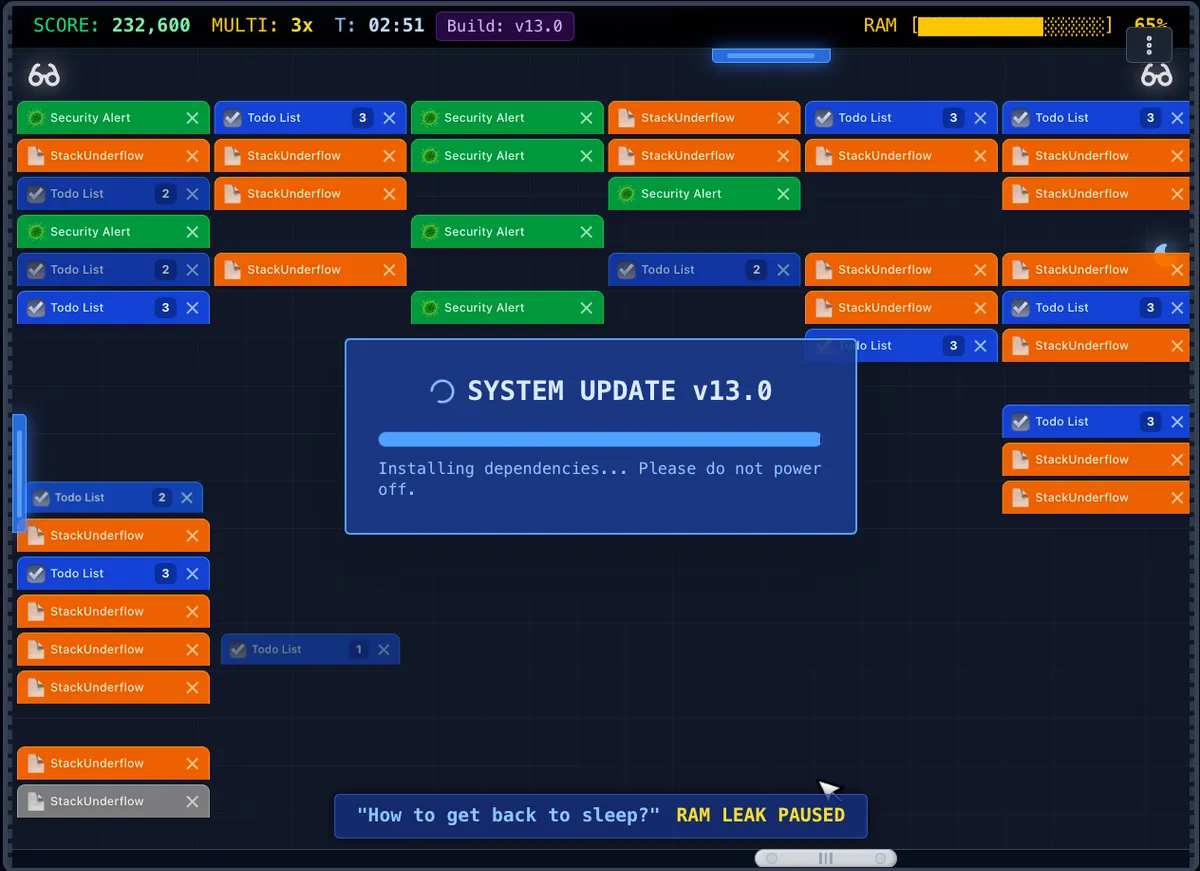
Play Tabinator: The completely accurate simulation of trying to close tabs
before your computer crashes.